

Move store data with control at every step.
Import and export Shopify store data from files and connected sources. Map fields, preview changes, schedule jobs and undo an import when needed.
The app is not yet on the Shopify App Store. Prices are planned and nothing is purchasable yet.
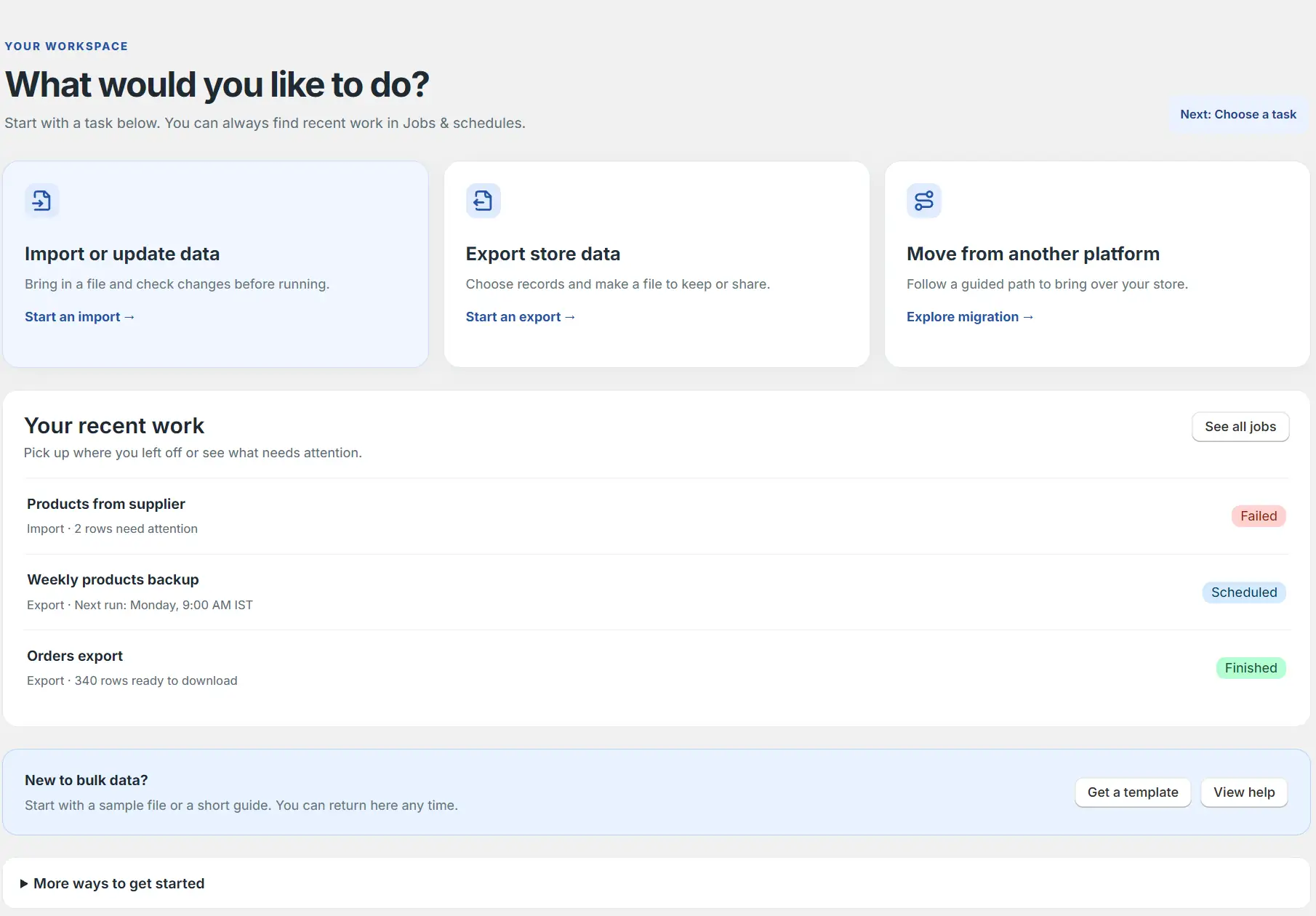
How an import works
Import from a file or connection, review the result, then run now or on a schedule.
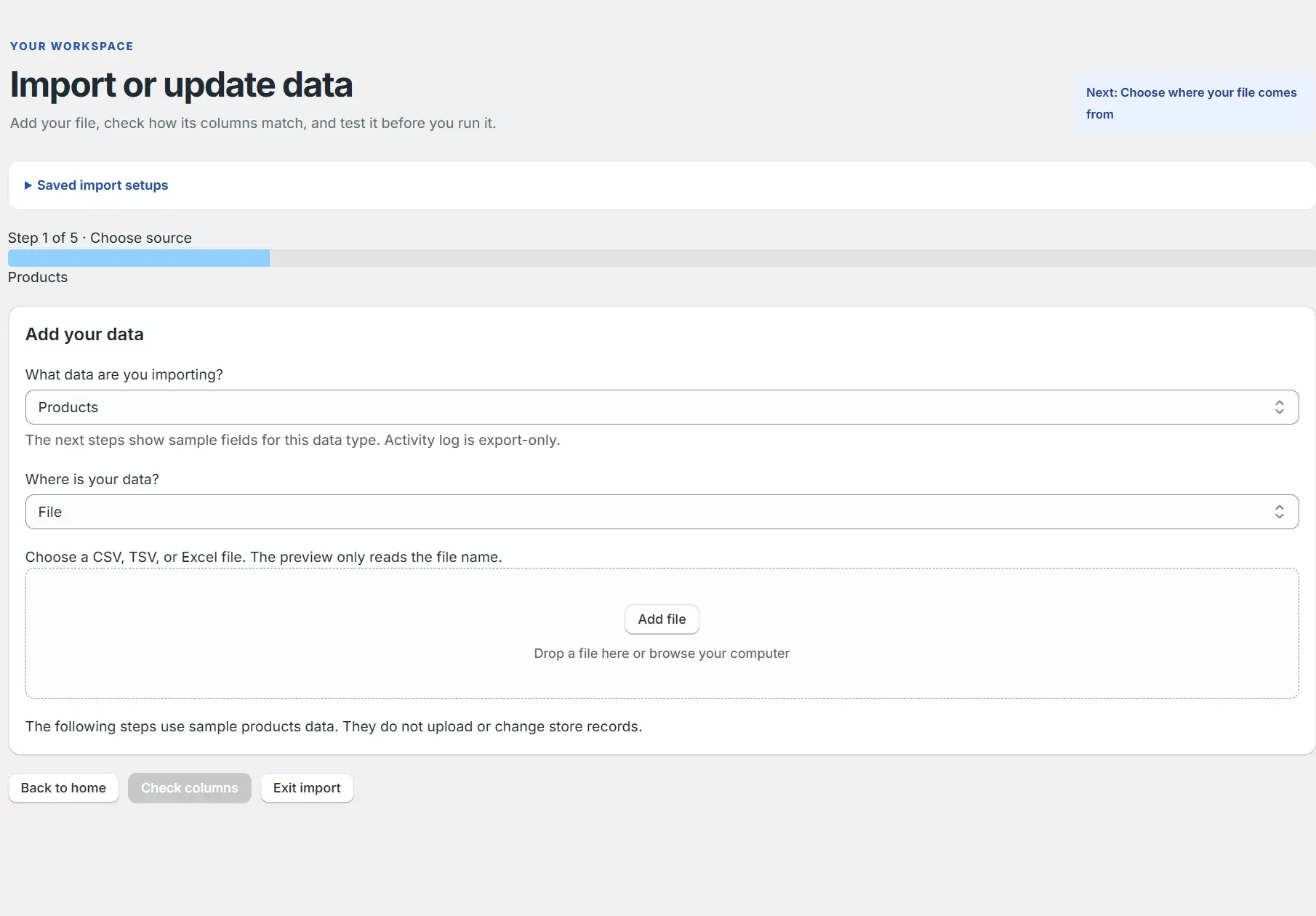
Choose a source
Upload CSV or Excel, enter a file URL, or connect FTP, SFTP, Google Drive, WebDAV or WooCommerce.
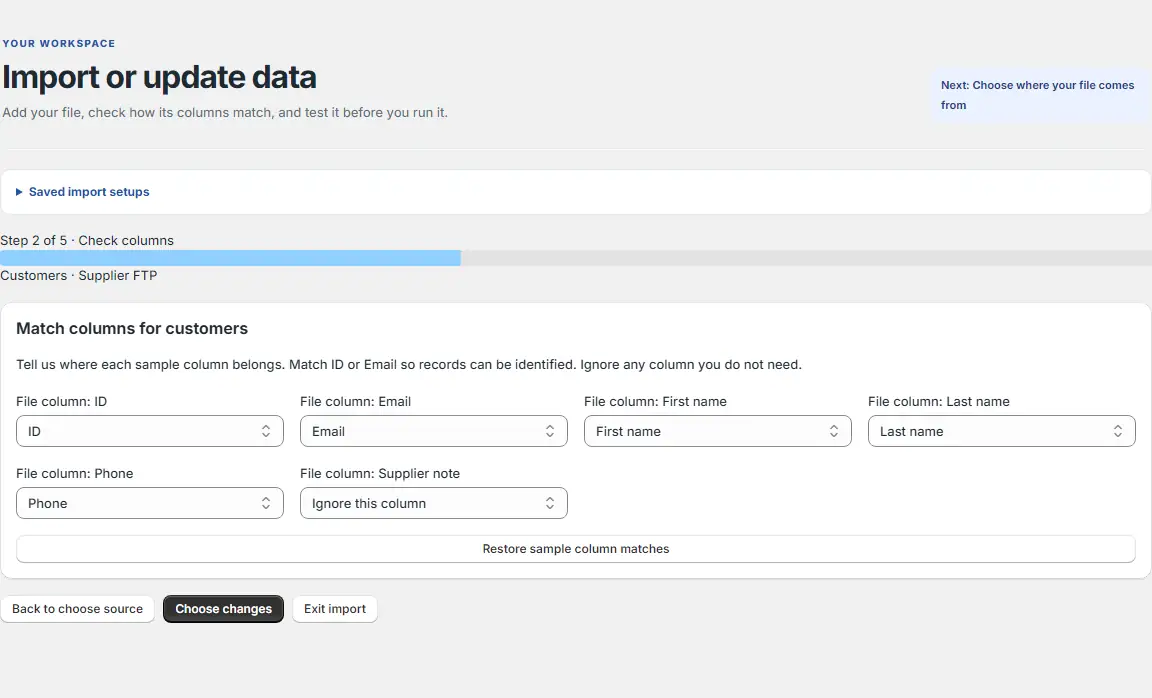
Match columns
Map source columns to Shopify fields and ignore fields you do not need.
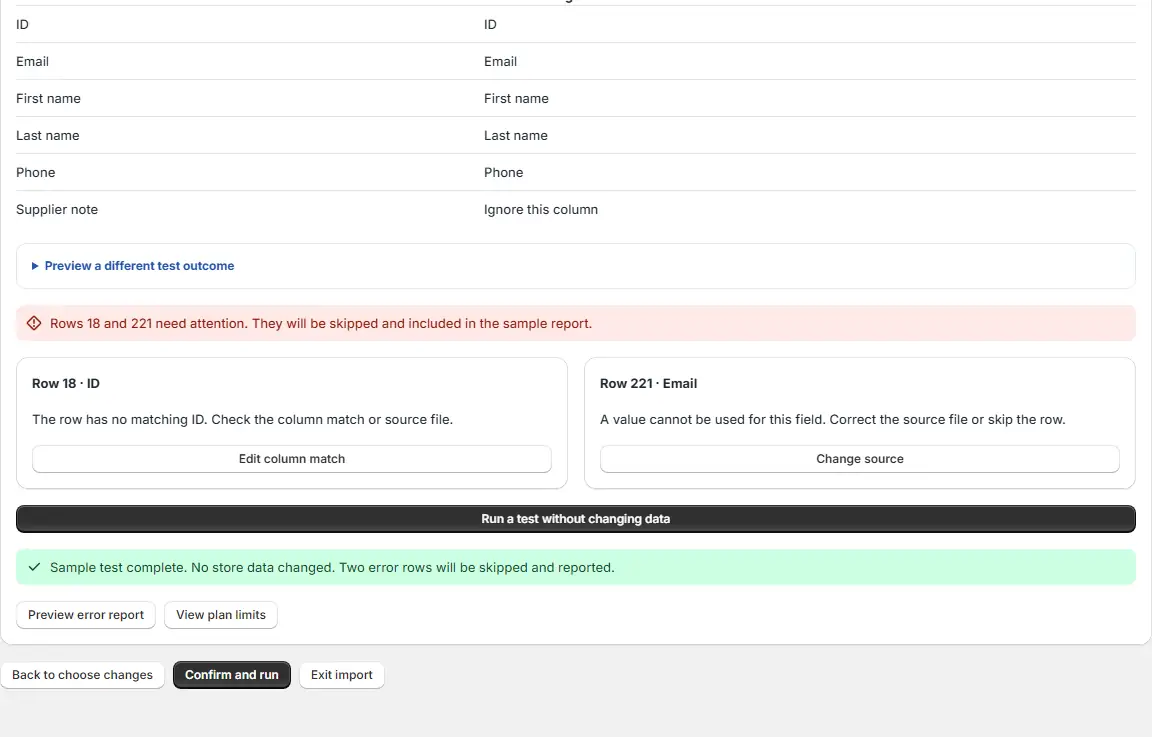
Review changes
Check proposed changes and row errors before running the job.
Run the import
Confirm the job or set a schedule. BluePeacock saves old values before writing.
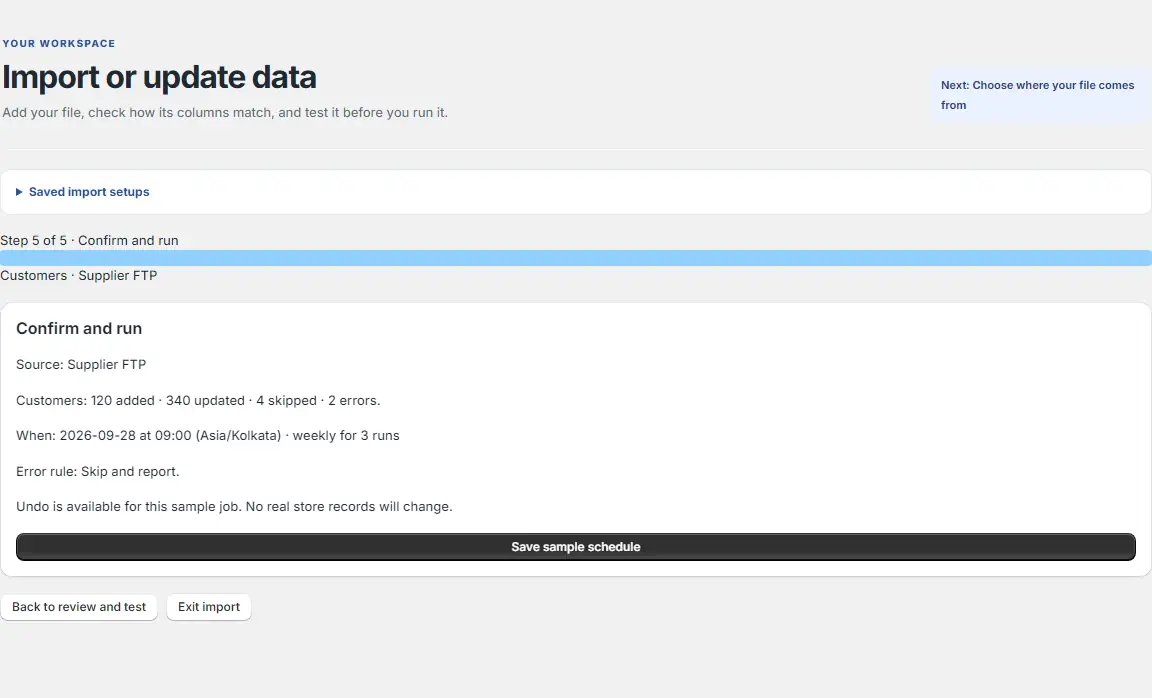
Undo if needed
Restore previous values from a finished import in one click.
How an export works
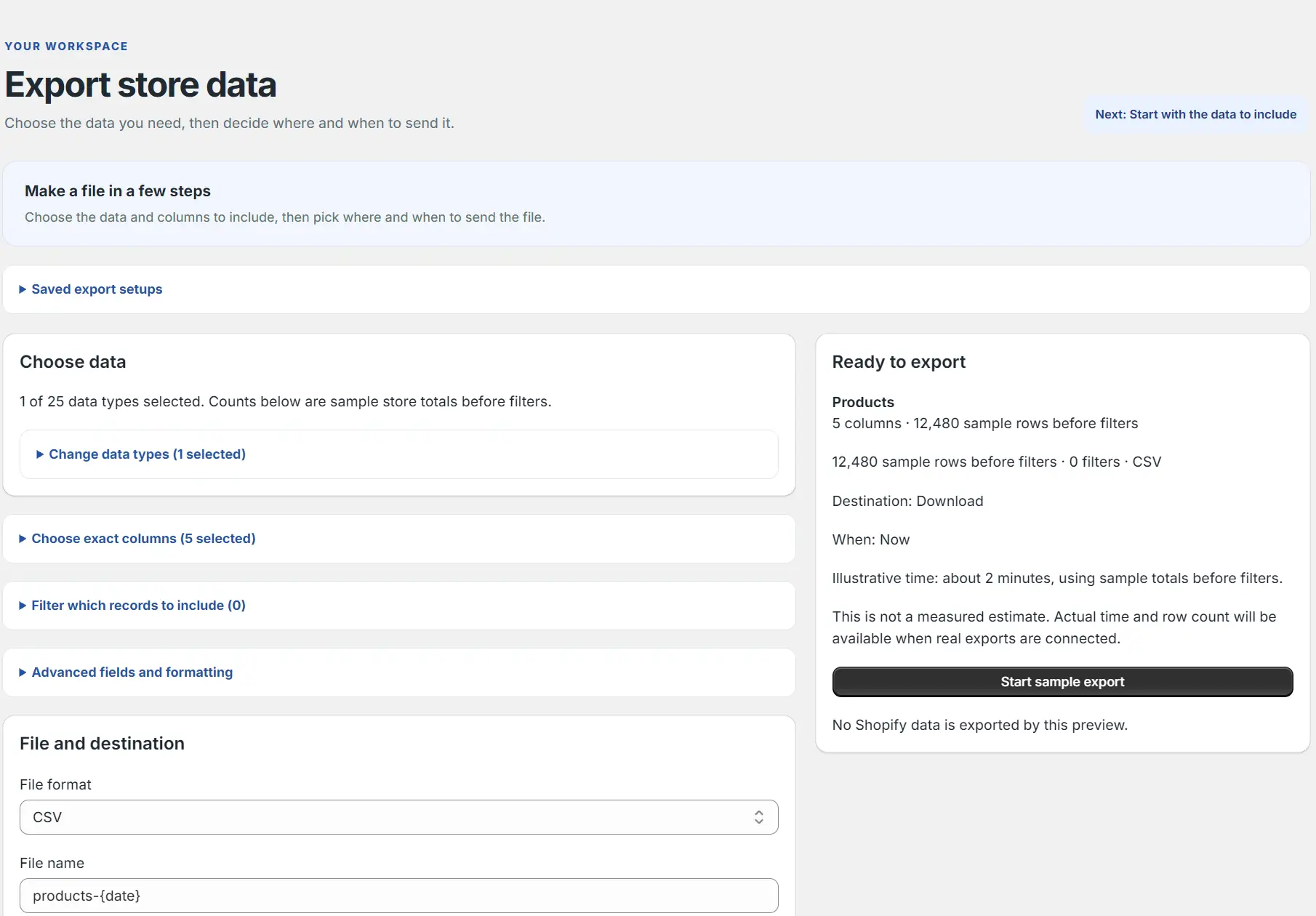
Choose data
Select the store data types to export.
Select columns and filters
Choose fields, their order and filters for the rows you need.
Set format and destination
Choose CSV, Excel or Google Sheets and download or send the file to a connected destination.
Run or schedule
Start now or save a repeating export with a timezone and end condition.
Keep control of every change
Preview, saved old values and one-click undo are included across the planned tiers.
- Blank cells leave existing store values unchanged.
- A row without record identity is refused with its row, column and fix named.
- Re-running the same file makes no further changes.
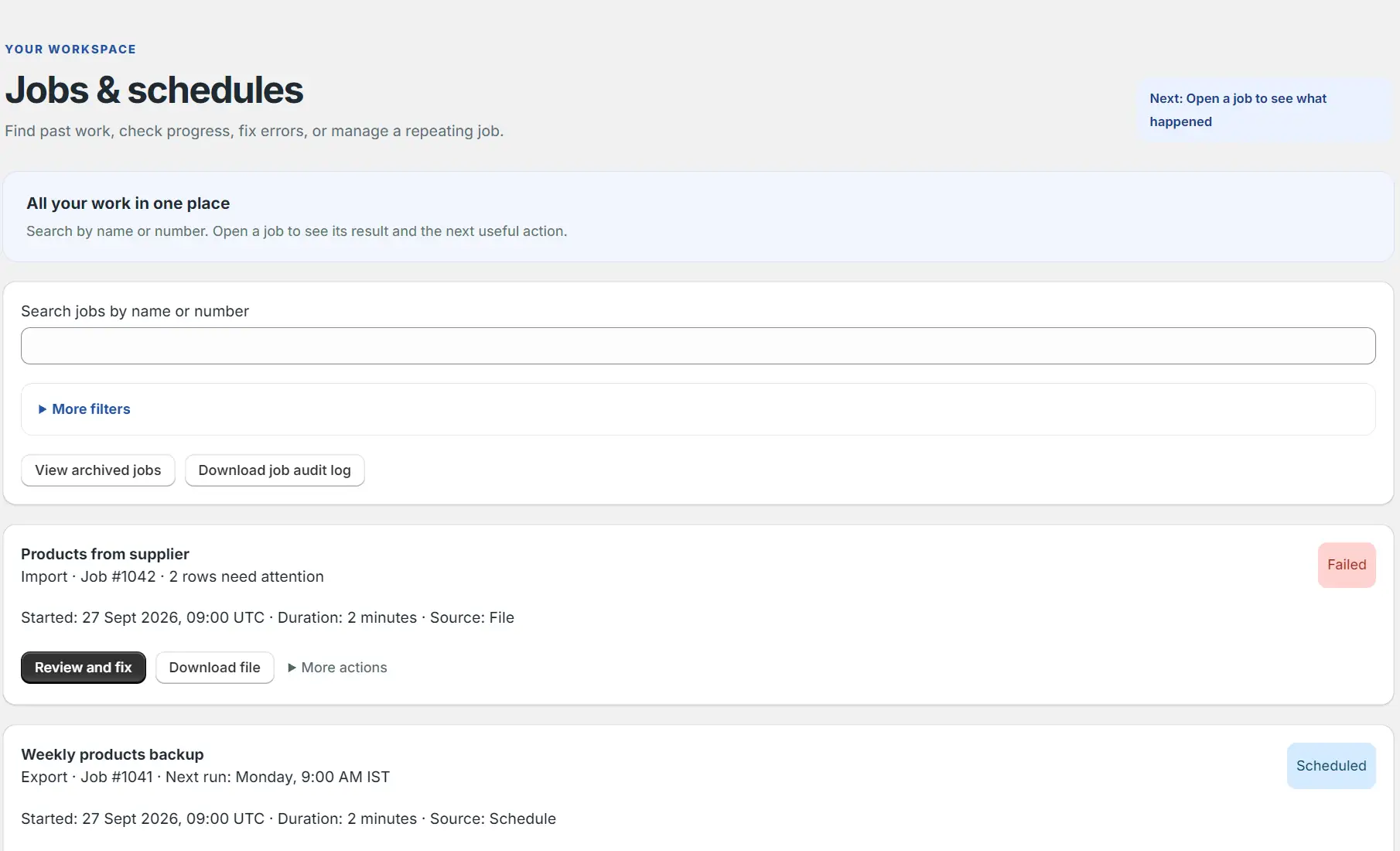
- Search jobs, review errors, download files and audit logs, and manage scheduled work.
Everything you can do
Import with a preview
Map fields and inspect row changes and errors before writing to Shopify.
Export the data you need
Choose entities, columns, filters, format and destination.
Schedule repeat jobs
Run imports and exports later or on a recurring schedule.
Undo an import
Restore saved previous field values in one click.
Data you can move
Products and variants
Move product records and their linked variants.
Collections
Move smart, custom and manual collections.
Customers and companies
Move customers and B2B company records.
Discounts
Move store discount records.
Orders and draft orders
Move orders and draft orders.
Payouts
Move payout records.
Pages and blog posts
Move store pages and blog posts.
Redirects
Move URL redirect records.
Activity records
Export activity and audit records.
Files
Move store files.
Metaobjects and definitions
Move metaobjects and their definitions.
Metafields and definitions
Move metafields and their definitions.
Navigation menus
Move navigation menu records.
Shop information
Move shop information.
Translations
Move translated store content.
Locations
Move location records.
Inventory transfers
Move inventory transfer records.
Catalogs
Move catalog records.
Import sources
Local files and URLs
Upload a file or import from a file URL.
FTP and SFTP
Connect to a server and save its credentials for later jobs.
Cloud connections
Import from Google Drive or WebDAV.
WooCommerce API
Connect a WooCommerce store using its site address and API keys.
Export
Choose data types
Select one or several entity types and inspect row counts.
Saved export setups
Reuse an export configuration without selecting everything again.
Delivery choices
Download a file or send it to a connected destination.
Columns and filters
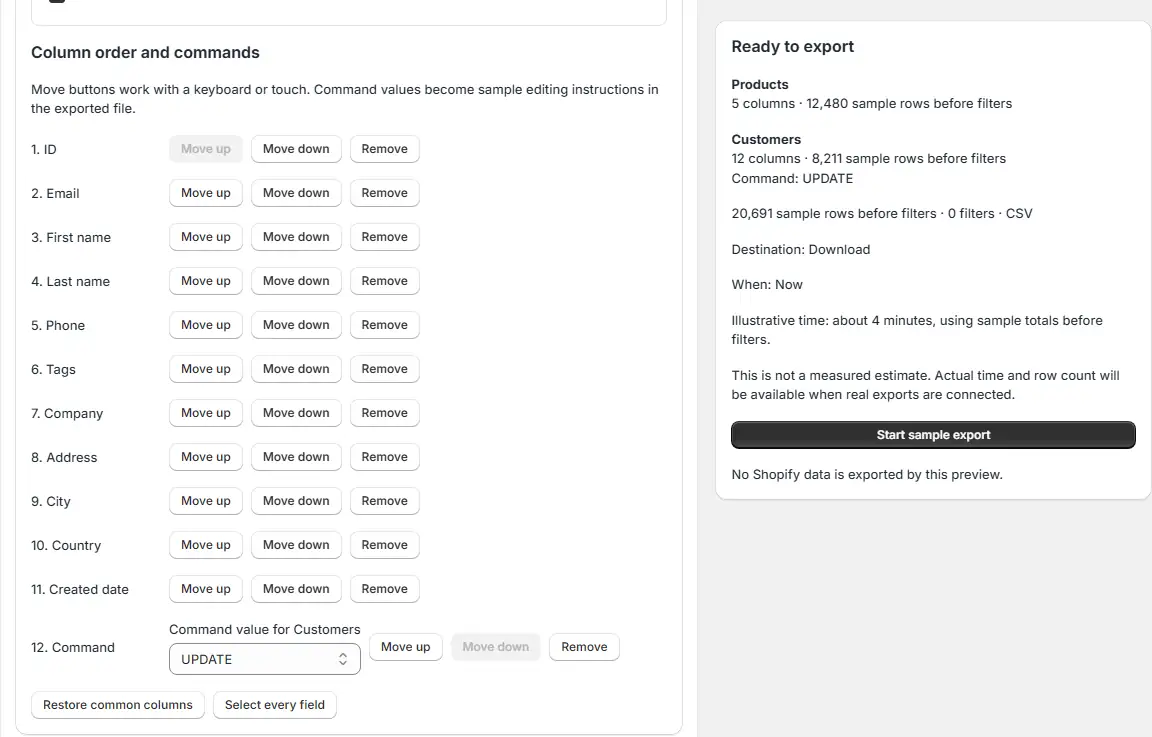
Pick and reorder fields
Choose field groups, edit individual columns and set their order.
Command columns
Include editing instructions in an exported file.
Flexible filters
Add field, operator and value rules, including patterns and multiple conditions.
Cost guidance
See slow-field warnings and a time estimate before running.
File formats and output
CSV, Excel and Google Sheets
Choose the output format that fits your workflow.
Custom separators and names
Set CSV separators and file names with placeholder values.
Formatting controls
Choose date, phone, image-name, sort and Excel compatibility settings.
File visibility
Control whether an export file has a public download link.
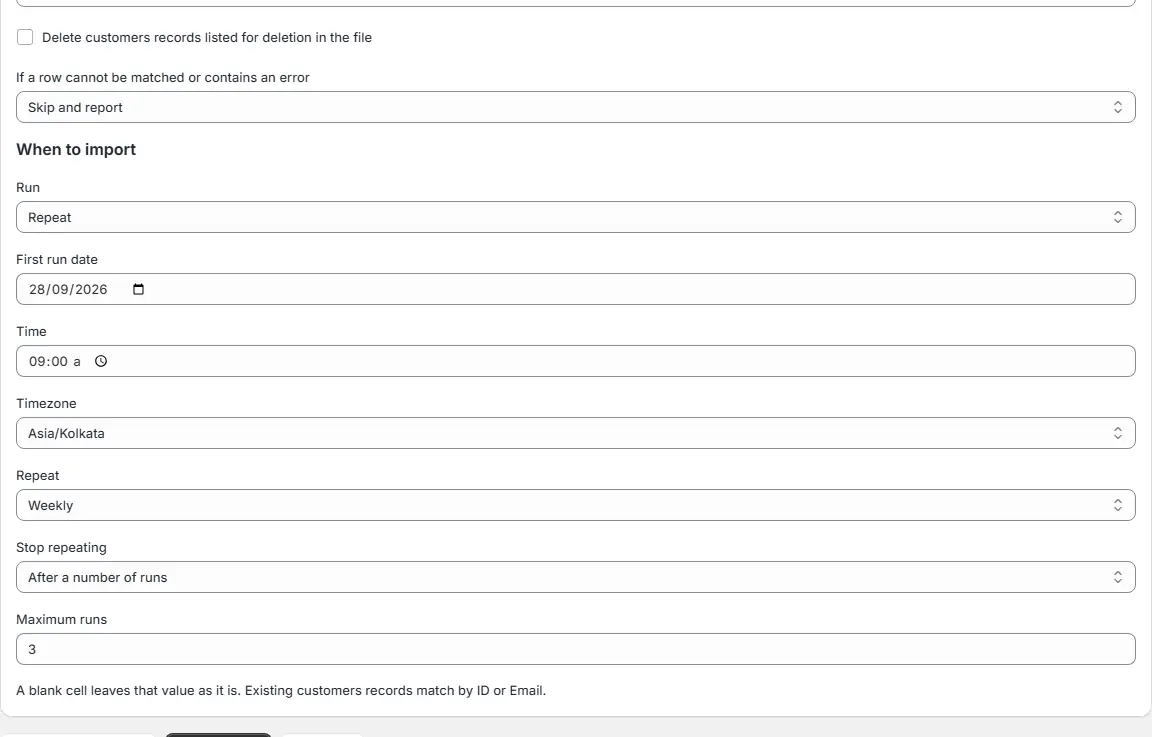
Scheduling and automation
Future and recurring jobs
Set a run time, timezone, interval and end condition.
Parallel work
Run concurrent jobs and parallel processing threads.
Reusable commands
Generate a command to repeat an export from the CLI.
Migration from another platform
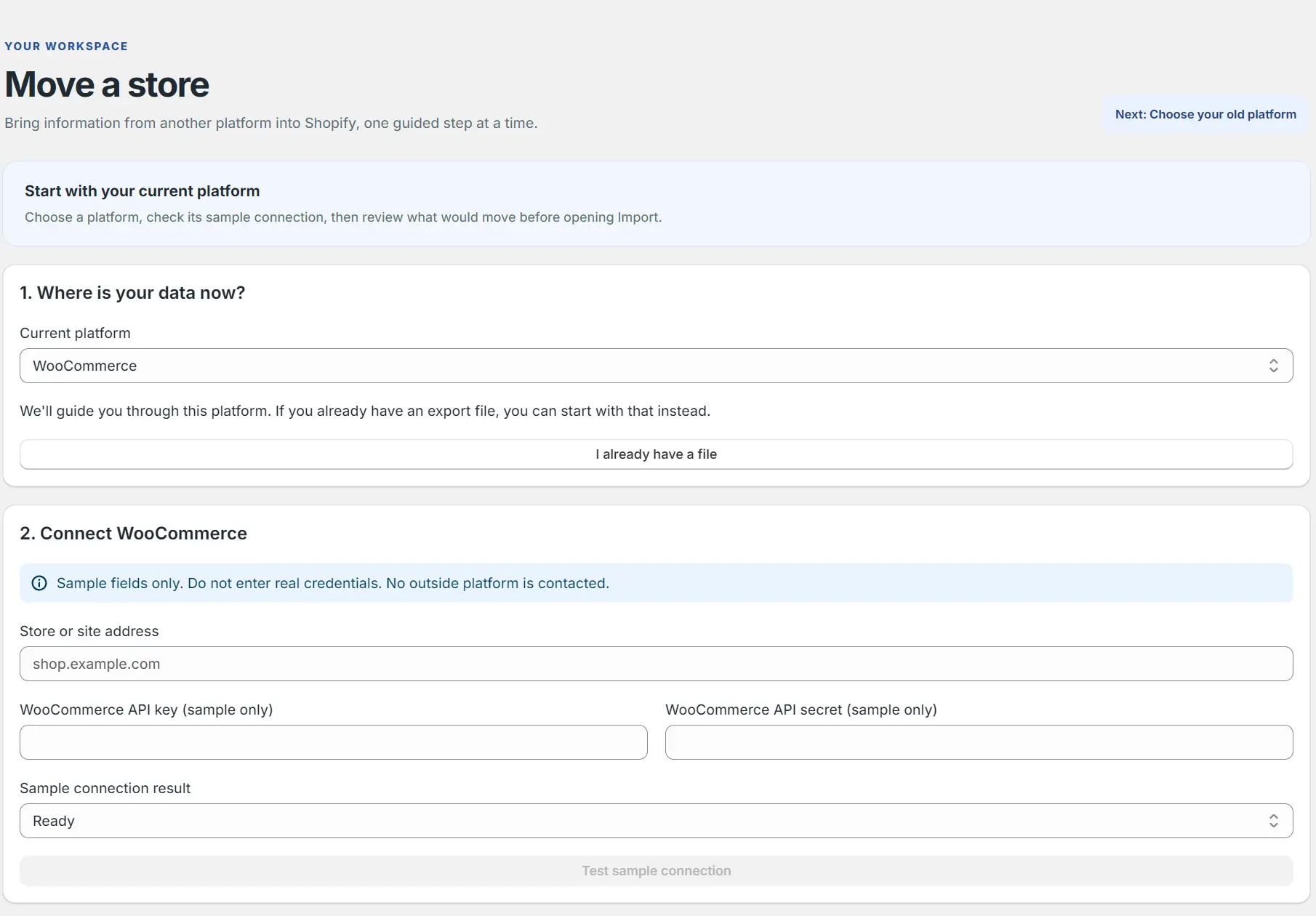
Guided migration
Follow a step-by-step migration flow for your source platform.
WooCommerce connection
Connect with a WooCommerce URL and API credentials.
File-based migration
Bring an existing export file and map it into Shopify fields.
Tools
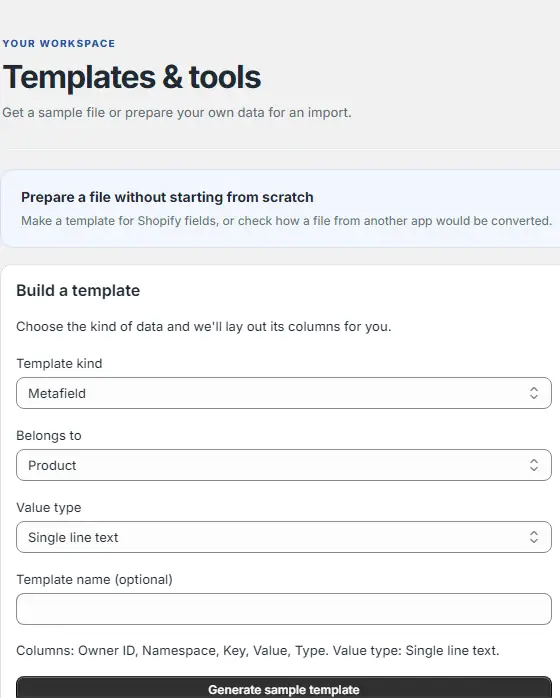
Transformation recipes
Prepare a source file for Shopify fields.
Metafield templates
Build a file template for metafield imports.
Metaobject templates
Build a file template for metaobject imports.
Template history
Return to templates you generated earlier.
Jobs and history
Search and filter jobs
Find jobs by name, state, data type, date or source.
Track and control work
See status and timestamps, live counters, and cancel a running job.
Reuse and download
Re-run a job, download its output or get the audit log.
Archives
Browse older and archived jobs.
Notifications
Job emails
Choose which start, completion, cancellation and error events send email.
Recipients
Send job notices to additional email recipients.
Settings and security
Retention
Set how long job files remain or erase stored files.
Permissions
Control import and export access by data type and request optional Shopify scopes.
Connection profiles
Save FTP, SFTP, Drive, URL and WebDAV connections.
File sharing
Control external downloads of exported files.
Multi-store
Share a subscription
Connect a second store to the same subscription.
Time-limited connection
Set when a linked store detaches.
AI and developer tools
MCP server
Connect AI assistants to app tools with per-tool setup guidance.
CLI and API keys
Create personal keys and run app tasks from the command line.
Support
Guides and templates
Read documentation and use sample files and tutorials.
Direct help
Contact BluePeacock at info@bluepeacock.in for help with your work.
Planned pricing
Four planned USD plans with file allowances. Prices are not live billing.
Free
50 products per file (planned)
Basic
10,000 products per file (planned)
Pro
100,000 products per file (planned)
Enterprise
Unlimited products per file (planned)
Prices and file allowances are planned. Nothing is purchasable yet; contact info@bluepeacock.in about access.
Questions and answers
Read all FAQsCan I undo a Shopify bulk import?
Yes. BluePeacock saves every previous field value before writing, so you can undo a finished import in one click.
What happens if a cell is blank?
That field stays unchanged. A blank cell never clears an existing value.
Can I use a Shopify product export?
Yes. BluePeacock reads Shopify product exports without reformatting them.
Who can help if an import goes wrong?
Email info@bluepeacock.in. BluePeacock also offers phone support on every planned tier, including Free.
Can I export store data?
Yes. Choose data types, columns, filters and a format, then download, send or schedule the export.
Which store data can I import?
Supported types include products, variants, collections, customers, companies, orders, discounts, pages, files, metafields, metaobjects, locations and the other types listed in the plans.
Which files can I upload?
CSV and Excel files for supported store data. Map fields and preview changes before confirming.
What if a row has no record identity?
BluePeacock refuses the row instead of guessing. It identifies the row, column and what to fix.
What if I import the same file twice?
The second run makes no further changes.
Can I schedule jobs?
Yes. Set a future run time, timezone, repeat interval and end condition for imports or exports.
Is another signup required?
No. BluePeacock does not ask for personal data beyond the Shopify install.
Can I install it from the Shopify App Store?
Not yet. Contact info@bluepeacock.in about access. Billing is unavailable and all prices are planned.
Can I use FTP, SFTP and cloud sources?
Yes. Import from FTP, SFTP, Google Drive, WebDAV, a file URL or local upload, and save connection profiles.
Can I migrate from WooCommerce?
Yes. Use the guided migration flow with a WooCommerce API connection or an exported file.
See the change. Keep the old value.
Ask BluePeacock about importing your store data.